Tasks to manage appointments
Creating appointments automatically creates an associated task
When a patient appointment is created, a task is automatically created per each appointment. Tasks help manage the appointments and keep track of the different tasks, for example, call the patient to confirm the appointment, discuss with the doctors which exams need to be performed upon the visit, etc. You can also keep track of the appointment status (to do, in progress and done).
Therefore, a task will be displayed associated to a specific appointment:
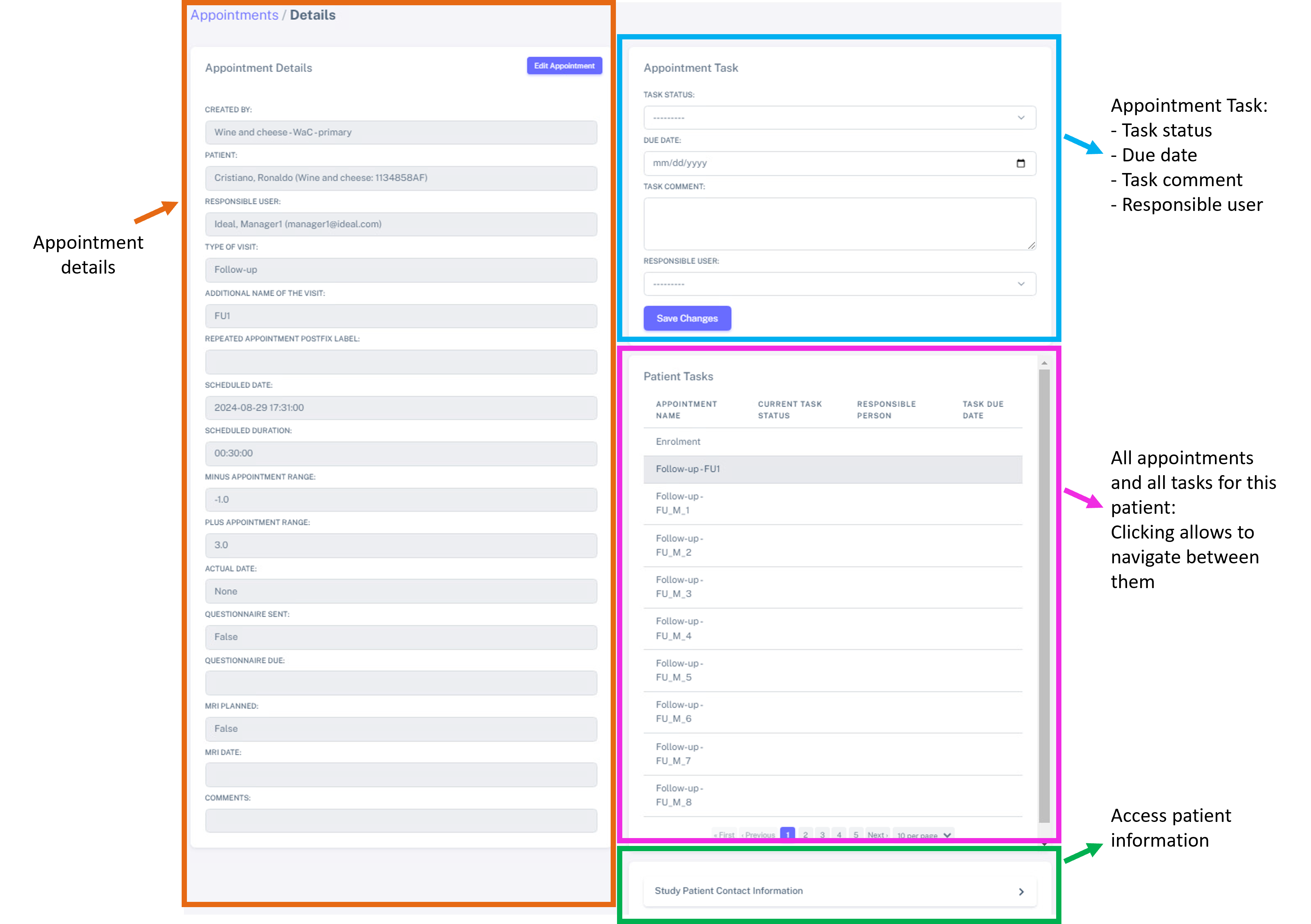
Again, you can see each task is shown associated to a specific appointment.
The task specific for each appointment is shown in the top right corner (blue blox): here, you can set the status of this task, the due date, any comment and the responsible user.
The area Patient tasks (pink box) allows to visualize all the appointments of this specific patient (in this case Cristiano Ronaldo) and to navigate between appointments by just clicking in the different appointmments (each row shows a different appointment). This section also allows a quick task overview for all appointments. The current appointment is highlighted in grey.
In green, you can quickly access to the Study Patient Contact Information, such as email address home address, etc. The full patient information can be accessed by clicking “View Full Patient Details”.

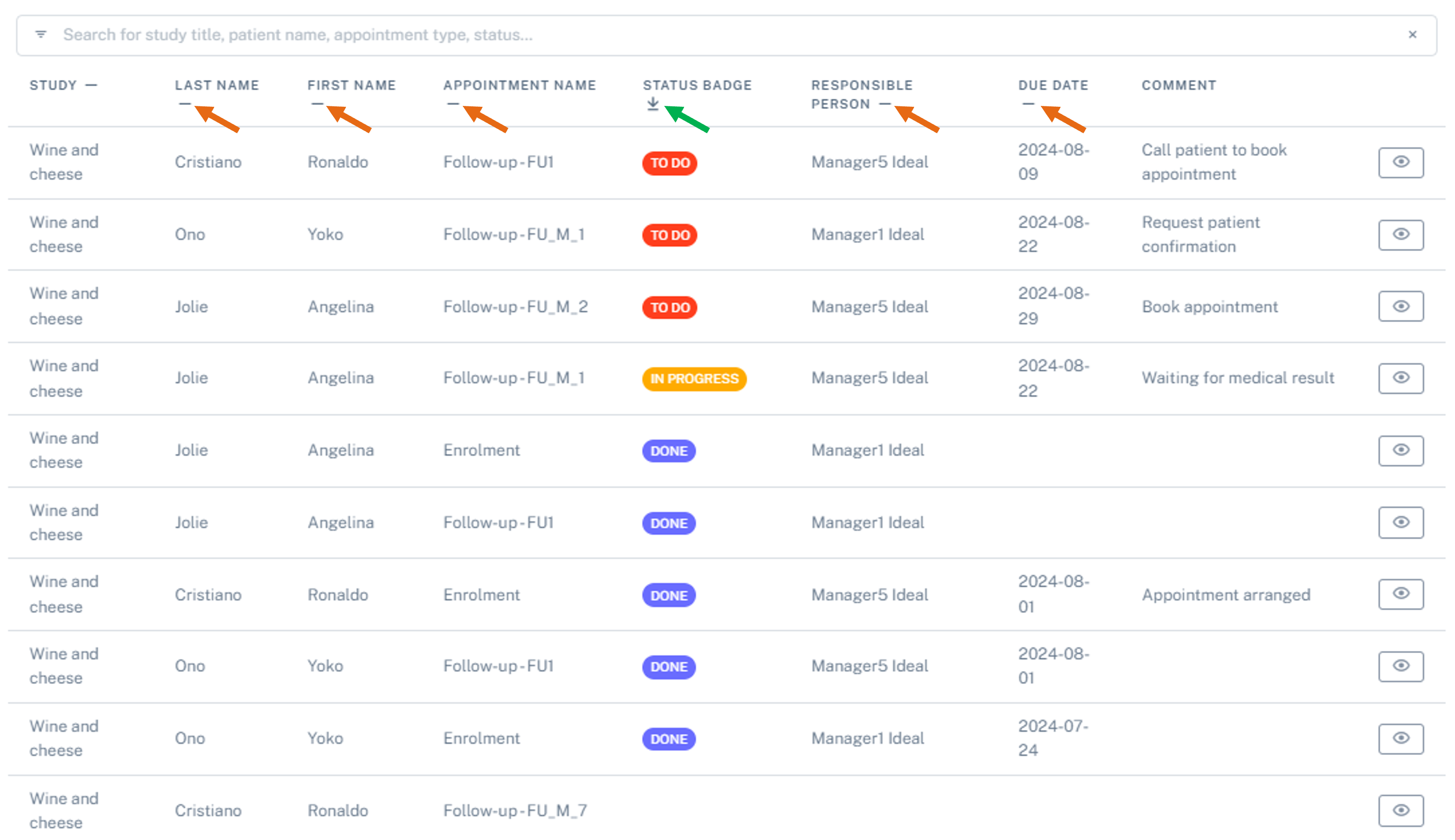
When an appointment task is updated, this is also updated in the Patient tasks section. See below for example, how Manager5 added a To do for the appointment on the 08/09/2024, and see how the different tags are shown on the “Current task status”:

How to access tasks
There are 3 different ways to access tasks:
via the Calendar: this allows you to quickly access the task of a specific appointment, you will still be able to navigate to other Patient tasks, as shown `above`_
via the Appointments list: this allows you to quickly access the task of a specific appointment, you can then navigate to other Patient tasks, as shown `above`_
via the Task list: this allows you to have a quick overview of all the tasks for all the patients
Access tasks via the Calendar
Go to Appointments > Appointments Calendar (pick the planned appointments tab). By double clicking in any appointment, you’ll be redirected to the view mentioned before:
Access tasks via the Appointments list
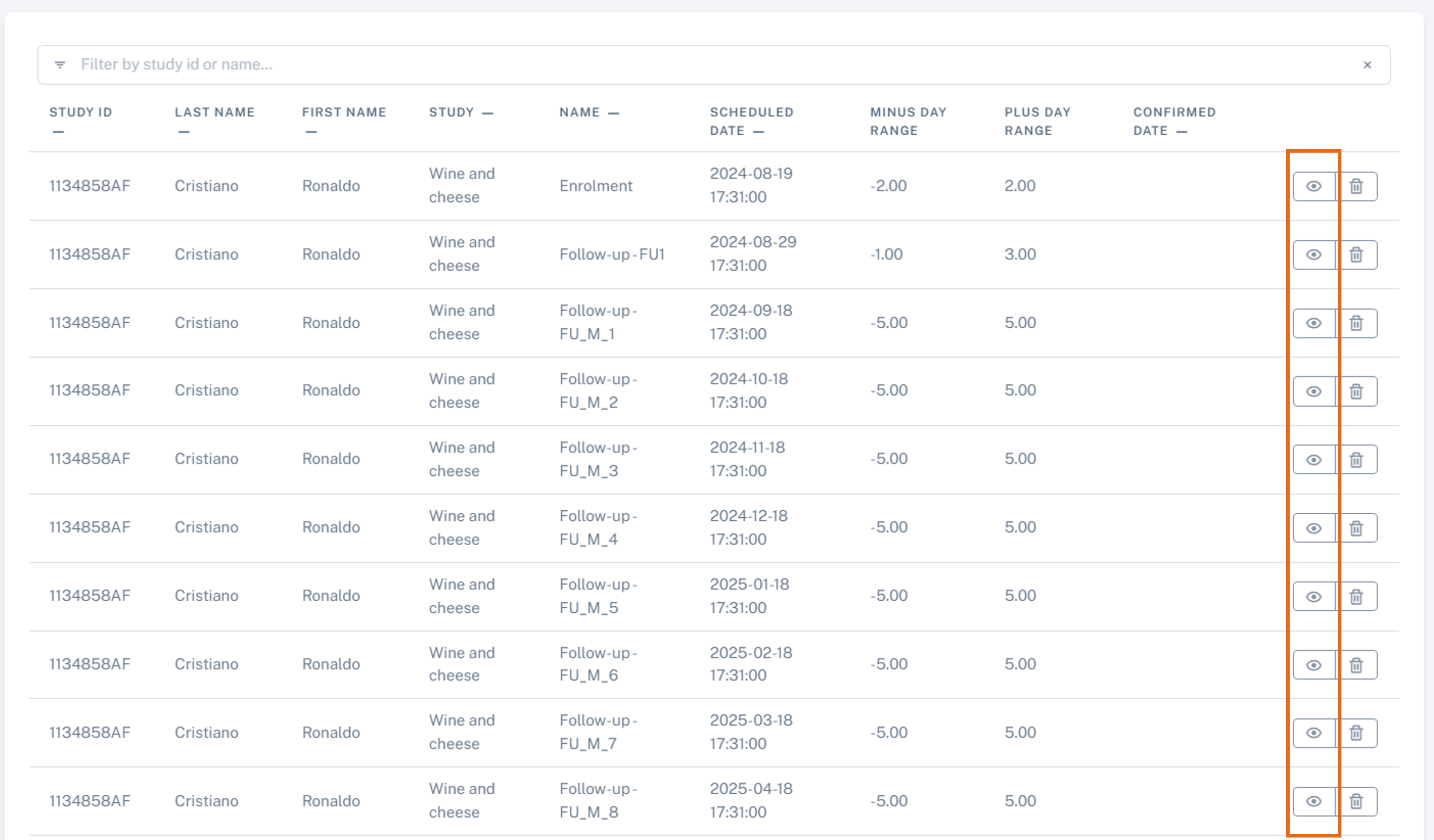
Go to Appointments > Appointments List and then click on the “View” icon, as shown below (orange rectangle).
Access tasks via the Tasks list
By navigating to Appointments > Task List, you will see the list of all the tasks for all the appointments, for all the patients. Note how you can also sort the different categories by clicking on “-”, as indicated by the orange arrows. Here, I chose to sort by Status badge (green arrow).